
If you are having trouble getting an Aimlabs Task or Playlist to start, follow these troubleshooting steps. These steps cover common issues ranging from game setup to connectivity problems.
1. Check Aimlabs Setup and Integrity
Verify Game Files
Corrupted or missing game files are a frequent cause of unexpected behavior.
- Steam:
- Right-click Aimlabs in your Steam Library.
- Select Properties.
- Go to the Installed Files tab.
- Click Verify integrity of game files…
- Epic Games Launcher:
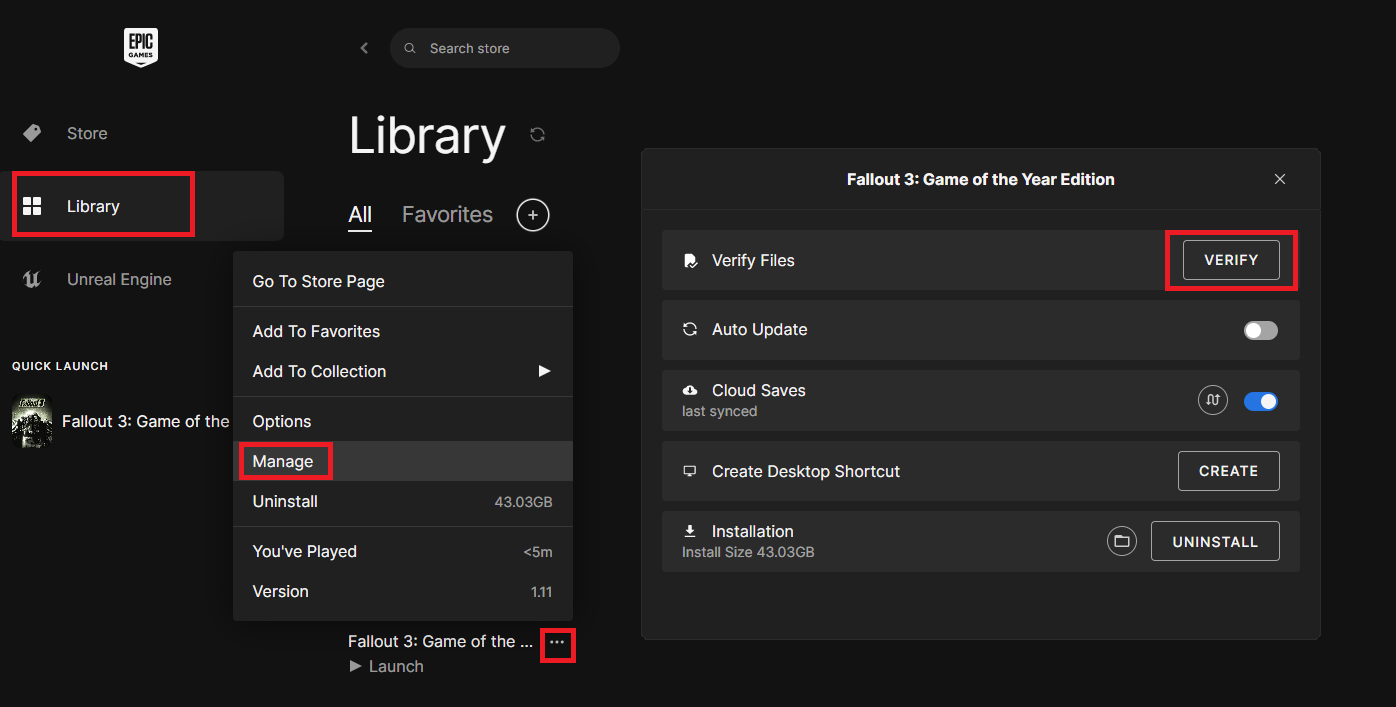
- Find Aimlabs in your Library.
- Click the three dots next to the game title.
- Select Manage.
- Click Verify under the "Installation" section.
Ensure Aimlabs is Updated
Make sure you are running the latest version of Aimlabs. Developers frequently release patches to fix bugs that prevent Tasks or Playlists from loading.
- Steam/Epic Games: Both platforms usually manage updates automatically, but you can manually check:
- Restart the platform client (Steam/Epic Games Launcher).
- Check the "Downloads" section for any pending Aimlabs updates.
Restart Aimlabs
A simple restart can often resolve temporary software glitches.
- Completely close Aimlabs.
- Restart your PC (recommended, but optional).
- Launch Aimlabs again and attempt to start the Task or Playlist.
2. Review Specific Task/Playlist Issues
Try a Different Task
If a single Task or Playlist won't start, the issue might be specific to that item.
- Try launching a different, official Aimlabs Task (e.g., "Gridshot"). If the new Task loads, the problem likely lies with the original Task/Playlist.
3. System and Software Checks
Run Aimlabs as Administrator
In some cases, Aimlabs may require elevated permissions to interact with certain system resources.
- Close Aimlabs and the launcher.
- Right-click the Aimlabs shortcut or executable file.
- Select Run as administrator.
Check for Conflicting Software
Overlay software, performance monitors, or aggressive antivirus/firewall programs can sometimes interfere with game execution.
- Temporarily Disable Overlays: Turn off overlays like the Steam Overlay, Discord, NVIDIA GeForce Experience, or similar programs.
- Antivirus/Firewall: Ensure your antivirus or firewall is not mistakenly blocking Aimlabs' connection or execution. You may need to add an exception for the Aimlabs executable file (AimLab_tb.exe).
4. Connectivity Issues
While most Tasks are loaded locally, online features like leaderboard submission and community content require a stable connection.
Check Internet Connection
Verify that your internet connection is active and stable.
Restart Router/Modem
If network connection seems sluggish or inconsistent, power-cycle your router and modem.
Check Aimlabs Server Status
Although rare, server maintenance or outages can impact the loading of certain online components. Check official Aimlabs social media channels (like Twitter or Discord) for any announcements regarding server status.
5. Further Support
If none of the steps above resolve the issue:
- Gather Information: Note down the exact Task or Playlist name that is failing, your operating system (Windows 10/11), and a brief description of when the problem started.
- Submit a Support Ticket: Contact Aimlabs support directly, providing the gathered information to receive personalized assistance.